A Practical Guide to WhatsApp Business API for Customer Support Teams
Your support team answers the same WhatsApp questions from a personal phone. That works at ten chats a day and breaks at a hundred. The consumer app has no routing, no shared inbox, and no audit trail.
This guide walks you through what the WhatsApp Business API changes for support teams: verification and Meta approval, choosing between direct access and a provider, routing and assignment rules, message template approval, chatbot handoffs, and the metrics worth tracking. By the end, you will know which setup fits your team and how platforms like Com.bot connect WhatsApp, Messenger, and Instagram in one place.
What the WhatsApp Business API Actually Changes for Support Teams
The WhatsApp Business API transforms how support teams operate, shifting from manual, device-bound messaging to scalable, automated customer interactions. It is an enterprise solution built on the WhatsApp Business Platform, designed for organizations that need more than a single handset can deliver.
Unlike the consumer app, the API separates messaging from any one device. Conversations flow through a shared inbox, so multiple agents can respond from a single business number. That alone removes the "who has the phone today" problem that slows down small teams.
Three changes matter most for support operations:
- Multi-agent access: several representatives work the same number at once, with assignment and routing handled centrally.
- Automation: chatbots and rule-based flows handle greetings, FAQs, and triage before a human ever joins.
- System integration: CRM platforms, help desks, and ticketing tools connect directly, so context travels with the conversation.
The platform also enforces structure the consumer app never did. Message templates, the customer service window, and approved display names all shape how a team plans its outreach and replies. Support leaders stop improvising and start designing workflows.
This guide breaks the transition into three parts: why teams outgrow the app, what Meta requires before access, and how to run day-to-day support once live.
API vs. App: Why Growing Teams Outgrow the Consumer Version
As support teams expand, the WhatsApp Business App's limitations become bottlenecks that hinder efficiency and customer experience. The app was built for one person with one phone. Growth exposes that design quickly.
The clearest constraint is seats. The app ties a number to a single device, so only one agent can reply at a time. When volume rises, customers wait while messages queue behind one person's attention.
Automation tells a similar story. The app offers basic greetings and away messages. The API supports full chatbot flows, so routine questions get answered instantly and agents focus on complex cases.
| Dimension | Business App | Business API |
|---|---|---|
| Agents per number | One device, one user | Multiple agents via shared inbox |
| Automation | Basic greetings | Chatbots and workflow automation |
| Message volume | Suited to low volume | Built for high throughput |
| Integrations | Minimal | CRM, help desk, ticketing systems |
| Access method | Consumer app on a phone | Cloud API or On-Premises API |
Integration is where the gap widens most. A CRM connection means every conversation carries order history, prior tickets, and account status. Agents answer with context instead of asking customers to repeat themselves.
There is also a compliance dimension. The API route requires business verification and template approval, which sounds like friction but produces consistency. Teams handling steady or growing volumes generally find the structure worth the setup.
Prerequisites: Business Verification, Phone Numbers, and Meta Approval
Before accessing the WhatsApp Business API, businesses must complete Meta's verification process, which involves business verification, phone number registration, and display name approval. Each step has its own requirements, and skipping details causes delays.
Business verification confirms your company is legitimate. You submit legal documents through Meta Business Manager, and the name on those documents must match your business profile. Mismatched paperwork is a common reason reviews stall.
Phone number registration requires a dedicated number that is not currently active on the consumer app or a regular WhatsApp account. You will verify ownership, typically by SMS or voice call, then connect the number through your chosen access route.
Display name approval checks that your public-facing name follows Meta's guidelines. Names that are too generic, misleading, or unrelated to your verified business often get rejected.
Practical steps for a smoother review:
- Gather legal documents before starting, and confirm the business name matches everywhere.
- Set aside a phone number used only for the API, not shared with any personal account.
- Choose a display name that clearly reflects your brand and follows Meta's naming rules.
- Decide early whether you will connect through the Cloud API directly or work with a Business Solution Provider (BSP).
Most delays trace back to documentation errors or non-compliant names, not to the platform itself. Reviewing both before submission saves a round of back-and-forth with Meta.
Choosing Between Direct Access and a Business Solution Provider
Businesses can access the WhatsApp Business API either directly through Meta or via a Business Solution Provider (BSP), each with distinct advantages and trade-offs. The right path depends on your team's technical capacity, timeline, and how much control you want over the underlying infrastructure.
Direct access means your organization manages the API connection itself. Historically this involved the On-Premises API, which required hosting and maintaining your own servers. Meta has since shifted focus to the Cloud API, which is hosted by Meta and removes much of that server management burden.
Even with the Cloud API, direct access still assumes your engineers can handle setup, authentication, webhook configuration, and ongoing monitoring. You also take on phone number registration, business verification, and display name approval without outside help.
- Control: Direct access gives you full say over data flow, integrations, and customization.
- Technical load: Your team owns uptime, debugging, and API version updates.
- Speed to launch: Setup can take longer without an experienced partner guiding each step.
A BSP sits between your business and Meta, handling the technical connection while offering added services. Many provide onboarding support, template guidance, and tools such as unified inboxes or chatbot builders. In exchange, you trade some control and typically pay a markup.
Neither model is universally better. A company with strong engineering resources may prefer direct access for maximum flexibility. A lean support team that wants to launch quickly often finds a BSP removes friction. The evaluation criteria below help you weigh that decision against your real constraints.
What to Evaluate: Pricing Models, Markup, and Support SLAs
When selecting a BSP, evaluate pricing models, markup structures, and support SLAs to ensure they align with your budget and service expectations. These three factors often matter more than any feature list, because they shape your ongoing costs and how quickly problems get resolved.
Pricing models generally fall into a few patterns. Some providers charge per-message, others use a subscription fee, and many blend the two into a hybrid. Ask how each model interacts with Meta's own conversation-based charges, since those fees exist regardless of provider.
Markup is where costs can quietly grow. A BSP may add a percentage on top of WhatsApp's conversation fees, or build margin into a platform subscription instead. Clarify exactly where the markup applies before comparing quotes side by side.
Support SLAs deserve equal scrutiny. Response times, support hours, and uptime guarantees vary widely. A provider that only answers during limited business hours may leave your team stranded during a weekend surge.
Ask prospective BSPs these questions directly:
- What is the markup on conversation fees, and is it a flat rate or a percentage?
- Are there setup, onboarding, or per-seat charges not shown in the headline price?
- What are your support hours, and is there coverage outside them?
- What uptime do you guarantee, and what happens if you miss it?
- Which template categories and message types does your platform support?
Watch for red flags such as vague pricing language, fees that appear only after signing, or SLAs with no defined remedies. A provider unwilling to put commitments in writing is a warning sign.
Some BSPs bundle extras like unified inboxes, chatbot tools, or analytics alongside the core API connection. These can reduce the number of separate systems your customer support teams juggle. Weigh them as conveniences, not as replacements for solid pricing and dependable support.
Setting Up Your Support Workflow on the API
A well-structured support workflow on the WhatsApp Business API ensures efficient routing, assignment, and management of customer conversations. Without one, even a small volume of incoming chats can overwhelm agents and create long waits.
Workflow setup is what separates a scalable support operation from a chaotic inbox. As message volume grows, manual triage stops working. Automated rules and shared visibility keep response times steady even during peak periods.
This section covers two foundations. First, routing and assignment rules paired with a unified team inbox. Second, message templates, including approval steps, categories, and common rejection reasons.
Getting both right reduces first-response times and creates a more consistent experience for every customer. The goal is simple: the right conversation reaches the right agent, with the right approved message, at the right moment.
Routing, Assignment Rules, and the Unified Team Inbox
Routing and assignment rules automatically direct incoming messages to the right agents or teams, while a unified team inbox consolidates conversations from multiple channels. Together they remove manual sorting from the agent's day.
Routing rules typically trigger on three signals: keywords in the message, customer attributes, and time of day. A billing question can route to finance, while a technical issue goes to support. After-hours messages can route to an on-call queue or an automated reply.
Assignment rules decide which agent receives a routed conversation. Common models include:
- Round-robin: conversations rotate evenly across available agents.
- Load balancing: new chats go to the agent with the lightest current workload.
- Skill-based: language, product knowledge, or account tier determines the match.
A unified team inbox adds a single view across WhatsApp, Messenger, Instagram, and other channels. Agents see full conversation history in one place, and collaboration features like internal notes, mentions, and conversation handoff keep teams aligned.
For example, a message containing "refund" can route to billing, a Spanish-language message to a Spanish-speaking queue, and a message arriving at 2 a.m. to an after-hours flow. Each rule removes a manual decision and shortens the path to a resolution.
Message Templates: Approval, Categories, and Common Rejections
Message templates must be approved by Meta before use, and understanding categories and common rejection reasons is crucial for efficient communication. Templates are required to start or reopen a conversation outside the 24-hour customer service window.
The submission process is straightforward: draft the template in WhatsApp Manager, select a category, and submit for review. Meta then approves or rejects it, and rejections usually come with a reason you can correct and resubmit.
Meta groups templates into three categories, each with a distinct use case:
- Utility templates: order updates, delivery notifications, and account alerts tied to a specific transaction.
- Authentication templates: one-time passcodes and verification steps for secure login.
- Marketing templates: promotions, offers, and re-engagement messages.
Common rejection reasons include promotional content inside a utility template, missing or malformed variables, incorrect formatting, and content that violates Meta's commerce or messaging policies. These are avoidable with careful drafting.
To get approved quickly, use clear and specific language, match the template to its true category, and avoid prohibited content such as misleading claims. Keep placeholders properly formatted and test each template before wide use.
Once approved, templates pair with session messages inside the 24-hour window. Agents can then use free-form messages, interactive messages, quick reply buttons, list messages, and media like images, video, or document sharing to resolve issues naturally.
Automating First Response Without Frustrating Customers
Automating first response with chatbots and quick replies can speed up service, but a seamless human handoff is essential to avoid customer frustration. When a customer sends their first message on the WhatsApp Business Platform, they expect acknowledgment within seconds, not hours. Automation meets that expectation consistently, even during peak hours or outside staffed shifts.
The goal is not to remove people from support. It is to remove waiting and repetition from the early stages of a conversation. A bot can greet the customer, confirm the topic, and gather basic details while routing the case to the right person. The human agent then starts with context instead of starting from zero.
Getting this balance wrong is costly. Customers notice when automation becomes a wall rather than a doorway. If a bot loops through menus, ignores a direct request for a person, or asks for information the customer already provided, trust drops quickly. Frustration often comes from the design of the automation, not the technology itself.
This section covers the practical building blocks: chatbots, quick replies, and handoff strategies. It focuses on how customer support teams can configure each piece so automation enhances human support rather than replacing it.
Chatbots, Quick Replies, and the Human Handoff
Chatbots and quick replies handle common queries instantly, but a smooth transition to a human agent is critical when automation reaches its limits. A well-built first-response bot relies on two complementary mechanisms: a decision tree and natural language processing. The decision tree defines the paths for predictable questions like order status, business hours, or return policies. Natural language processing lets the bot interpret variations in how customers phrase those same questions.
Quick replies are the customer-facing layer of this design. These interactive messages with quick reply buttons present tappable options, so customers can select "Track my order" or "Talk to an agent" without typing a full sentence. List messages work well when options exceed three items, such as choosing among several departments. Both formats reduce typing effort and keep the conversation on structured paths that the bot can handle reliably.
Handoff triggers should be defined before launch, not improvised later. Common triggers include:
- A customer explicitly requests a human agent
- The issue falls outside the bot's decision tree or knowledge base
- Negative sentiment appears in the customer's messages
- The bot fails to resolve the query after a set number of attempts
- The case involves billing disputes, complaints, or sensitive account changes
Best practices make the difference between a helpful bot and a frustrating one. Always offer a visible path to a human, ideally from the very first menu, rather than hiding it behind multiple steps. Avoid dead ends by ensuring every branch leads somewhere useful, whether that is a resolution, a resource, or an agent. When the handoff happens, pass the full context to the agent: the customer's name, selected options, and any details already collected. This prevents the customer from repeating themselves, which is one of the most common sources of irritation in automated support.
It also helps to be transparent about what the bot is. A brief line such as "I'm an automated assistant and can connect you with a teammate at any time" sets honest expectations. Teams should review bot transcripts regularly to find where customers abandon conversations or ask for a person. Those transcripts reveal which intents need better quick replies and which ones should route to humans immediately. Over time, this review cycle keeps automation aligned with real customer behavior instead of assumptions made at setup.
Handling Order Updates, Payments, and Bulk Notifications
The WhatsApp Business API excels at transactional messaging, from order confirmations and payment links to bulk notifications for large audiences. For customer support teams, this is where the platform earns its keep. Transactional messages are expected, opened quickly, and rarely ignored.
The key is picking the right message template category for each job. Utility templates cover order and account updates. Authentication templates handle one-time passwords. Marketing templates carry promotions. Mixing them up invites template rejection from Meta.
This section covers how to structure each type, how native payments work inside a chat, and how to run bulk notifications without breaking opt-in rules.
Utility templates for order updates. Utility templates are built for specific, user-initiated transactions. Shipping confirmations, delivery status changes, and payment receipts all fit here. Each template needs fixed variables, so a shipping confirmation might include an order number, carrier name, and estimated arrival date. Because these messages are tied to a real transaction, they typically see high engagement. Support teams should keep the copy tight and put the most important detail first, since customers often read only the preview line.
Authentication templates for one-time passwords. Authentication templates deliver OTPs for logins, password resets, and account verification. Meta applies stricter rules to this category, including a required button for copying the code and a fixed expiry notice. Support teams should never reuse an authentication template for anything else. Doing so risks rejection and can affect the quality rating of the phone number.
Native payment integration. The WhatsApp Business Platform supports in-chat payments in eligible regions. Instead of sending a customer to an external checkout, a business can send a payment link or an order details message with a call-to-action button. The customer pays without leaving the conversation. Support agents then see the payment status in the same thread, which cuts down on "did my payment go through" tickets. Availability depends on country and payment provider, so teams should confirm coverage before promising it to customers.
Bulk notifications and opt-in compliance. Bulk sends are useful for promotions, restocks, and service alerts. The rules are strict. Customers must opt in before receiving marketing messages, and every bulk message needs an approved marketing template. Support teams should also track opt-outs and honor them immediately. A few practical safeguards:
- Segment audiences by opt-in status before every send
- Use marketing templates only for promotional content, never for order updates
- Include a clear opt-out path in the message
- Monitor delivery and block rates after each campaign
Two quick examples. A payment link sent via a utility template might read: "Your order #4821 is ready. Tap below to complete payment of $34.99." A bulk notification about a sale might say: "Our summer sale starts Friday. Reply STOP to opt out." Both use approved templates, both respect the customer's prior consent, and both keep the 24-hour window rules intact.
Handled well, these three message types turn WhatsApp from a chat channel into a full transactional surface for support teams.
Measuring Support Performance: Key Metrics and Reports
Tracking key metrics such as response time, resolution rate, and customer satisfaction is vital to optimize support on the WhatsApp Business API. Without measurement, a support team cannot tell whether changes to staffing, templates, or automation actually helped. The API and Business Solution Provider (BSP) dashboards expose the raw data needed to answer that question.
Start with a small set of metrics that map directly to the customer journey. Adding too many numbers early on creates noise and slows decision-making.
- First response time: how long a customer waits for the first human or automated reply
- Average resolution time: total time from first message to a closed issue
- Conversation volume: inbound threads per hour, day, and week
- Resolution rate: share of conversations closed without escalation
- CSAT score: customer satisfaction captured through a post-chat survey
- Reopen rate: conversations that return after being marked resolved
These six numbers cover speed, quality, and demand. Together they reveal whether the team is keeping pace or falling behind.
Reports can be generated in two main ways. BSP dashboards usually offer built-in charts for response time, volume, and agent activity, which suits teams that want quick visibility. The Cloud API and On-Premises API, by contrast, let developers pull webhook events and message status data into a custom analytics tool.
A common approach is to log every inbound and outbound message with a timestamp, then calculate response and resolution times in a spreadsheet or BI platform. This gives full control over definitions, such as whether the clock starts at message delivery or first read.
Benchmarks help teams interpret the numbers. Teams often aim for a fast first response during business hours, since WhatsApp users expect near-instant replies. Resolution time varies by industry, but simpler queries should close within the same session. CSAT targets vary, though teams should set their own baseline before chasing a fixed figure.
Data becomes useful when it points to a bottleneck. A rising first response time with stable volume usually signals understaffing at specific hours. A high reopen rate suggests agents are closing tickets too early. A spike in one template category may mean a delivery or approval issue rather than a support problem.
Review these reports weekly and adjust shift coverage, template wording, or automation rules accordingly. Over time, the same metrics show whether those changes worked.
Where Com.bot Fits: One Platform for WhatsApp, Messenger, and Instagram Support
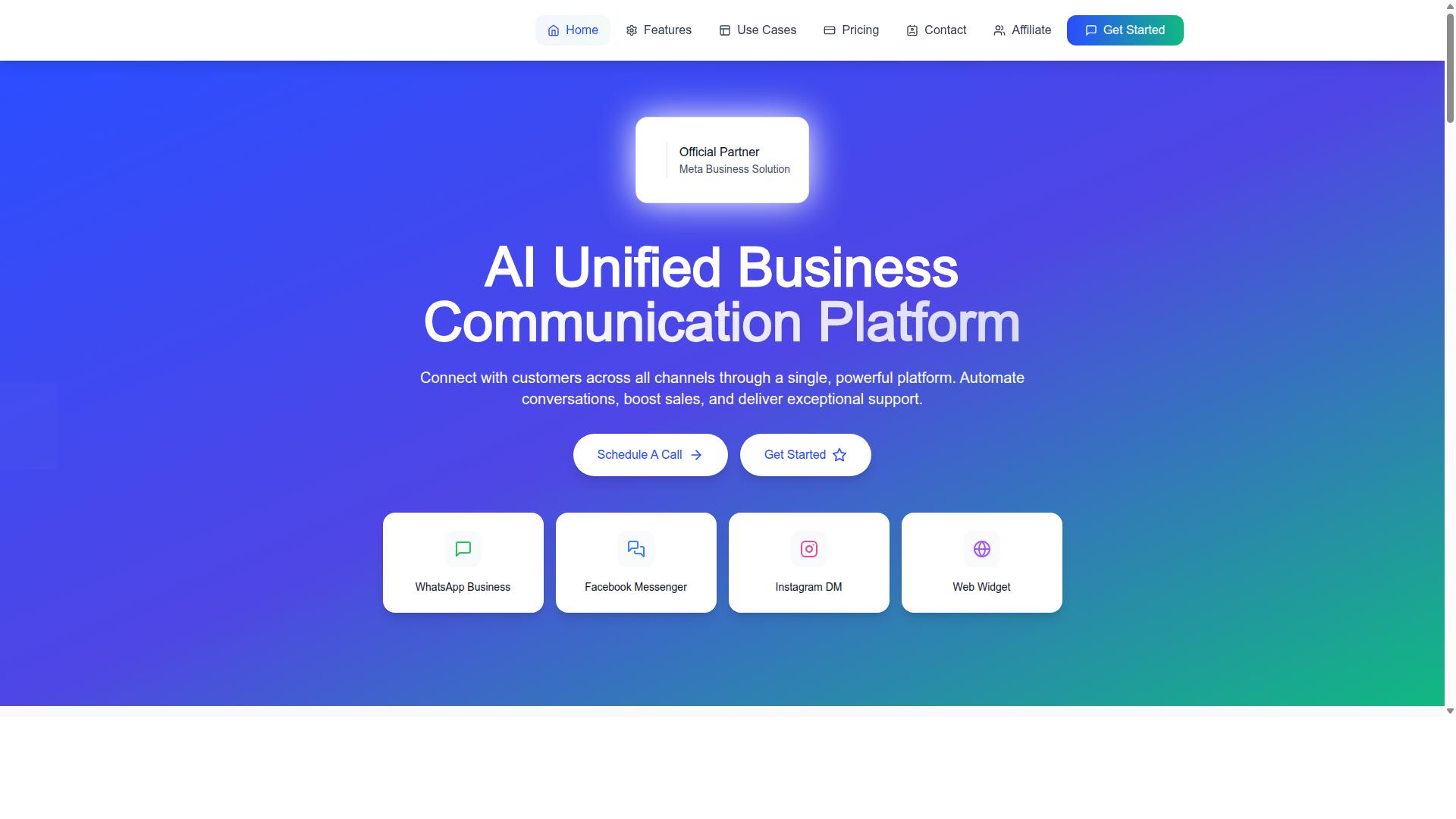
Com.bot is an AI Unified Business Communication Platform that connects WhatsApp Business, Facebook Messenger, Instagram DM, and Web Widget through a single interface. For customer support teams, that means one place to see and answer every conversation, regardless of which channel the customer chose.
Com.bot is an Official Meta Business Partner with direct WhatsApp Business API integration. That status matters for support teams because it removes the need to source a separate Business Solution Provider (BSP) just to connect the WhatsApp Business Platform.
The platform is built around a unified team inbox, so agents work from one queue instead of switching between apps. A visual bot builder handles repetitive questions and routing, while native payments let customers complete transactions without leaving the chat.
Multi-channel support is the core design principle. WhatsApp Business, Messenger, Instagram DM, and Web Widget all feed into the same system, which keeps context intact when a customer moves between them.
Scale is worth noting. Com.bot reports 23,000+ active customers and processes 25M+ messages daily, figures that suggest the infrastructure is built for high-volume support operations rather than small pilots.
For teams already managing WhatsApp alongside social channels, consolidating onto one platform reduces tool sprawl. It is a practical fit for businesses that want to streamline support without stitching together separate vendors for each messaging app.
Plans, Pricing, and Getting Started
Com.bot offers flexible pricing plans: Silver at $149 per quarter, Gold at $349 per quarter (recommended), and Platinum V1 at $2500 per quarter. Each tier scales by team size and feature depth, so support teams can start lean and expand as volume grows.
| Plan | Price | Best For |
|---|---|---|
| Silver | $149 per quarter | Small teams testing multi-channel support |
| Gold | $349 per quarter (Recommended) | Growing teams needing more capacity |
| Platinum V1 | $2500 per quarter | Larger operations with advanced needs |
The Gold plan is the recommended option and tends to suit growing teams best. It balances cost against the capacity that support operations typically need once WhatsApp becomes a primary channel.
Add-ons are available at $10 per month for an additional team member, social channel, or external actions (per 5000). Bot triggers (per 25000) and an ecom store are also offered as add-ons at the same monthly rate.
WhatsApp messaging is billed at actual Meta rates with no markup, which keeps per-conversation costs predictable as volume increases. Dedicated support is available separately at $49/hour for WABA, CRM, and Inbox help, or $99/hour for Ecommerce, Bots, and Automations.
Getting started follows a straightforward path:
- Sign up for a Com.bot account and choose a plan.
- Connect your channels, including WhatsApp Business, Messenger, Instagram DM, and Web Widget.
- Set up bots to handle routing and common questions.
- Invite your team and begin managing conversations from the unified inbox.
For a demo, contact sales at [email protected] or call +91 080 6987 1810. Teams evaluating the WhatsApp Business API for customer support can use that conversation to confirm which plan fits their agent count and channel mix.
Recommended Resources: